Using a VPN (or proxy) often means your traffic appears to come from a different country. That’s expected. What many people don’t expect is that websites pay close attention to language signals, not just IP addresses.
When your browser language doesn’t match your IP location, websites may treat your session as unusual. This can result in extra verification steps, frequent CAPTCHAs, or reduced trust during login and registration.
This article explains why language matters, and how to fix language mismatches.
Why websites look at your browser language
Every browser sends language information in several ways. Websites commonly see:
- your primary browser language,
- a list of preferred languages,
- language headers sent with requests.
For most users, these values match their location. For example:
- IP from Spain → browser language Spanish
- IP from Japan → browser language Japanese
When a website sees something like:
- IP from France,
- browser language Russian or unrelated English,
it often treats the session as non-standard. This doesn’t automatically block access, but it raises suspicion, especially when combined with a VPN or proxy.
The most reliable fix: use an anti-detect browser
Why language is hard to fix in a regular browser
Changing language in a standard browser usually affects only part of what websites see. Some values update, others don’t. As a result:
- headers may say one thing,
- JavaScript reports another,
- the system locale may stay unchanged.
This inconsistency is exactly what detection systems look for.
How antidetect browsers handle language properly
Private browser with mobile emulation FREE TRIAL
An antidetect browser lets you define language settings at the profile level, where websites actually read them. A well-configured profile ensures that:
- browser UI language,
- JavaScript language values,
- request headers,
all tell the same story.
This makes your session look like it belongs to a real user from that country.
How language matching works in practice
The general idea is simple:
- You choose a country via proxy or VPN
- The browser profile is configured for that location
- Language preferences are aligned with the region
- Websites receive consistent, realistic signals
Instead of seeing “user from one country with habits from another,” sites see a normal regional setup.
Example: fixing language mismatch in WADE X
Automatic language setup
In WADE X, language is automatically adjusted based on the proxy IP location. When automatic mode is enabled:
- the profile language matches the country,
- headers and browser values stay aligned,
- no manual tuning is required.
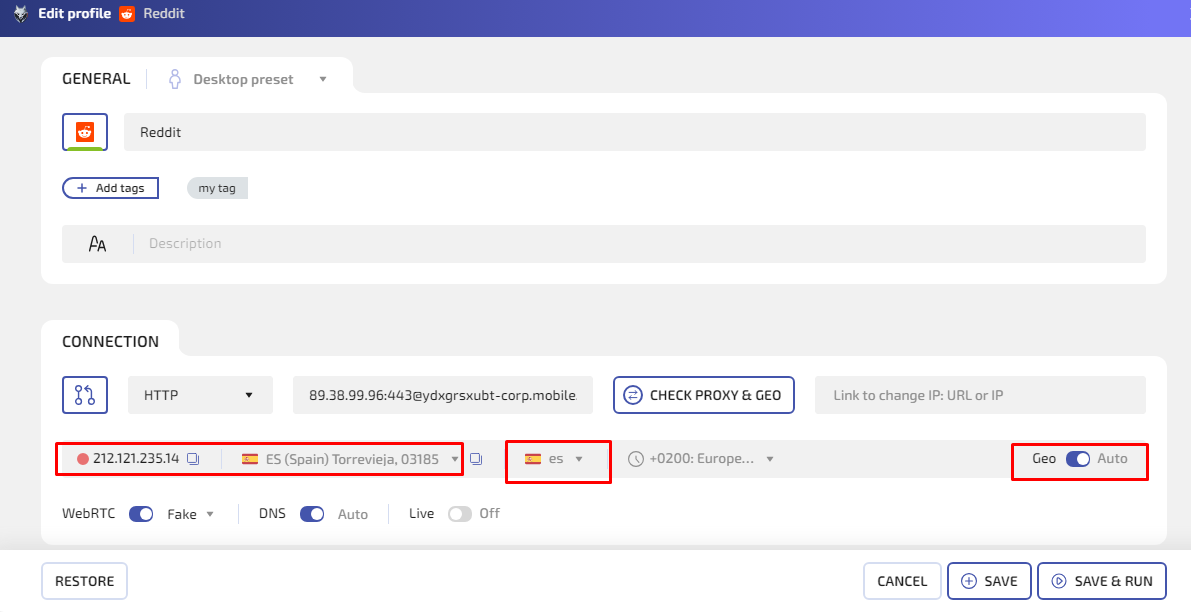
How to enable it:
- Connect a proxy from the desired country
- Open your WADE X profile settings
- Make sure geolocation mode is set to Auto
- Save the profile and restart the browser
- Recheck the language warning
In most cases, the mismatch disappears immediately.
Manual language selection
Sometimes you may want to define language settings yourself. This can be useful if:
- you need a specific regional variant,
- automatic detection doesn’t fit your workflow.
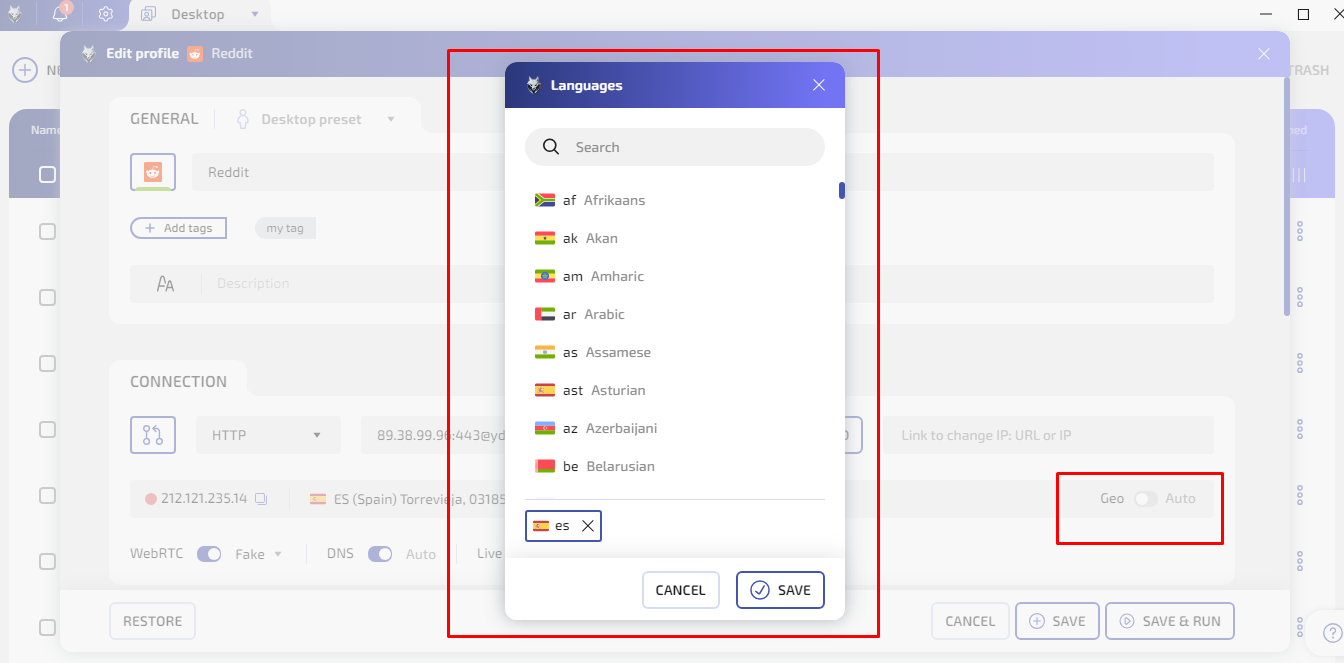
Step by step:
- Open your WADE X profile settings
- Switch from Auto to Geo mode
- Click on the Language setting
- Select the language that matches your IP country
- Save the profile and restart the browser
- Verify the result
Tip: avoid random combinations. Language choices should make sense for the selected country.
Other ways to reduce language-related suspicion
Antidetect browsers are the most consistent option, but alternatives exist.
Changing browser language manually
You can set a new language in your browser settings, then restart the browser. This may help on simple websites, but:
- not all language signals are updated,
- headers and system values may still conflict,
- results vary between browsers.
Using a separate OS environment
Some users run a dedicated operating system or virtual machine per region, with:
- system language set to the target country,
- browser configured natively inside that environment.
This approach can work, but it requires more setup and maintenance.
Common mistakes to avoid
- Using one browser profile for different countries
- Keeping English as a default for all regions
- Mixing rare languages with unrelated IP locations
- Changing language without recreating the profile
Language consistency matters just as much as correctness.
How to confirm the issue is fixed
You should see:
- browser language matching the IP country,
- no language mismatch warnings,
- fewer CAPTCHAs and verification prompts.
When language, IP, and location data agree, most websites stop flagging the session.
Summary
Language mismatches don’t mean you’re doing something wrong. They simply stand out to automated systems that expect consistency.
By aligning your browser language with your IP location, especially at the profile level, you make your sessions look natural and predictable. For users who work across regions or rely on proxies regularly, an antidetect browser remains the most stable and low-friction solution.