Using a VPN or a proxy for privacy and security is a completely normal practice today. Many people do it to protect personal data, work safely on public networks, or separate work and personal activity. However, websites don’t see intent – they only see signals.
One of the most common signals that looks suspicious to websites is a timezone that doesn’t match your IP address. When this happens, sites may:
- block access,
- show endless CAPTCHAs,
- ask for additional verification,
- or lower trust in your session.
Below are practical ways to solve this technical issue, starting with the most reliable one.
Why websites care about your timezone
When you open a website, it can see:
- your IP country,
- your browser’s timezone,
- local time calculated via JavaScript.
For a normal user, these values usually match.
For example:
- IP: Germany
- Timezone: Europe/Berlin
When a website sees something like:
- IP: Germany
- Timezone: UTC+3
it often assumes:
- VPN or proxy usage,
- automated tools,
- or an inconsistent browser environment.
This doesn’t mean VPNs are “bad”. It simply means that inconsistent settings look unusual, and automated systems are designed to react to that.
Recommended solution: use an anti-detect browser
What an anti-detect browser actually does
An antidetect browser creates isolated browser profiles where technical parameters can be controlled consistently. Instead of changing things at the operating system level, you configure them inside the browser profile, exactly where websites look.
A properly configured antidetect browser allows you to:
- match timezone to IP country,
- avoid conflicts between system time and JavaScript time,
- keep all location-related parameters aligned.
This is the most stable way to fix timezone mismatches.
Private browser with mobile emulation FREE TRIAL
How timezone matching works in general (conceptually)
Most antidetect browsers follow the same logic:
- You connect a proxy or VPN from a specific country
- The browser profile is assigned that geographic location
- Timezone, local time, and related values are adjusted accordingly
- Websites see a consistent and realistic setup
As a result, your session looks like a normal user from that country – just with a different IP.
Example: fixing timezone mismatch in WADE X browser
Automatic mode (recommended)
In WADE X, geographic data is automatically determined from the proxy IP. Based on that location, the browser profile automatically adjusts:
- timezone,
- language,
- coordinates.
This is the easiest and safest option.
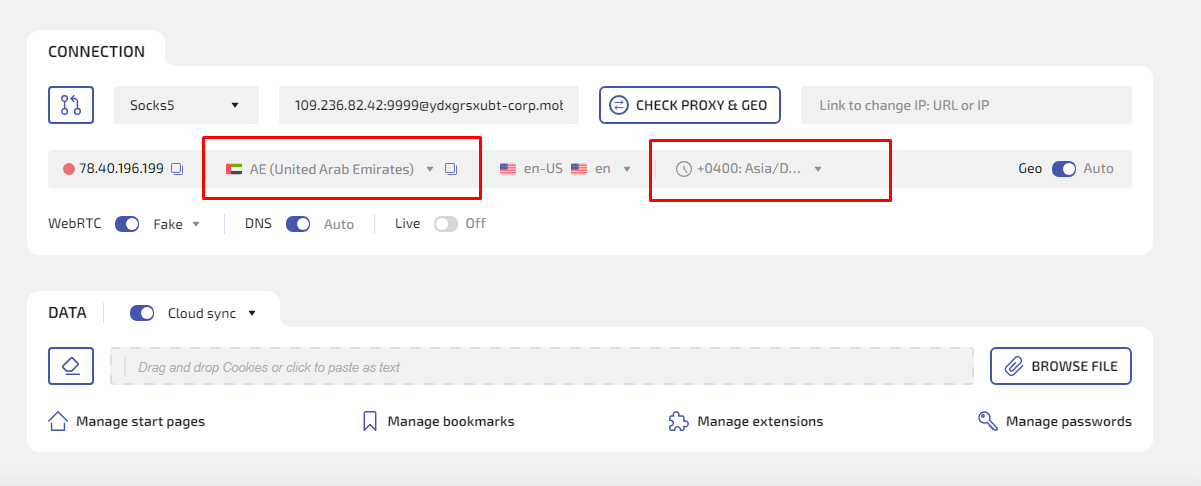
Step by step:
- Connect a proxy from the country you need
- Open the profile settings in WADE X
- Make sure the geolocation mode is set to Auto
- Save the profile and restart the browser
- Check the result on a fingerprint test page
In most cases, the timezone warning disappears immediately.
Manual mode (when you need more control)
Sometimes you may want to set values manually – for example, if you need a specific region or the automatic detection doesn’t fit your task.
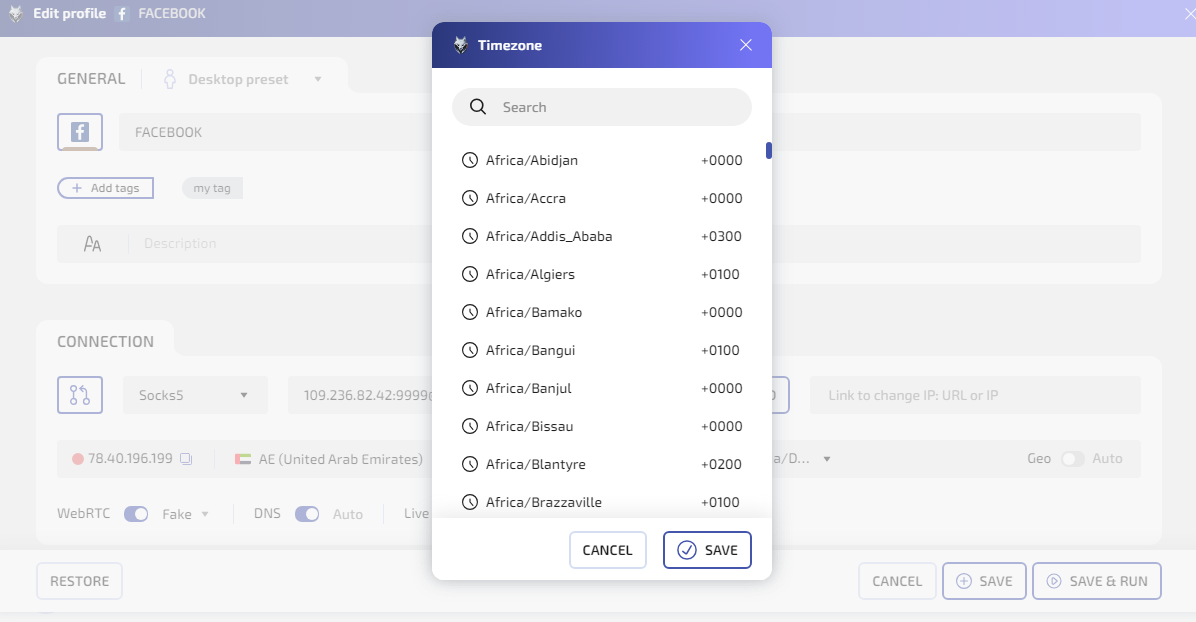
Step by step:
- Open your WADE X profile settings
- Switch the mode from Auto to Geo
- Click on Timezone
- Select the timezone that matches your proxy country
- Save the profile and restart the browser
- Recheck the result
Important: the timezone should logically match the IP country. Random combinations often bring the warning back.
Other working approaches (without an anti-detect browser)
Antidetect browsers are the most reliable option, but they are not the only one.
Adjusting your operating system timezone
If you use a regular browser:
- connect your VPN or proxy,
- set your OS timezone to match the IP country,
- restart the browser.
This can work for simple cases, but it’s less reliable because:
- some browsers expose additional signals,
- privacy protections may interfere,
- language and location often remain inconsistent.
Separate environments (virtual machines)
Another approach is using a separate OS environment:
- a virtual machine with its own timezone and language,
- a dedicated proxy for that environment.
This can be effective, but it requires more setup and resources, and virtual environments themselves may be detectable.
Common mistakes that keep the warning active
- Using one browser profile for multiple countries
- Changing the proxy without recreating the profile
- Fixing the timezone but leaving coordinates unchanged
- Adjusting system time instead of browser-level settings
Consistency matters more than any single setting.
How to check that the problem is fixed
You’re looking for three things:
- IP country and timezone match
- Local time looks realistic
- Fingerprint checkers no longer flag timezone issues
If those conditions are met, most websites will stop treating your session as suspicious.
Summary
Using a VPN or proxy for privacy is normal. What causes problems is inconsistency, not protection.
By aligning your timezone with your IP, ideally at the browser profile level, you remove one of the most common technical red flags. That alone often reduces CAPTCHAs, blocks, and unnecessary verification steps.
If you frequently change locations or work with multiple regions, a properly configured anti-detect browser is the most predictable and stable solution.