When I open Whoer.net IP checker, I have one simple curiosity: what does the internet actually see about me right now? The page immediately answers things I usually only think of as short questions in my head: “what is my IP”, “how to find IP address”, and whether a quick IP lookup can tell more about me than I expect.
Best VPN – Stay safe and private! Get 10% Off with Code WELCOME
Whoer.net doesn’t ask me to click through menus or fill out forms. The main screen just loads and throws everything on the table: my current IP address, where it thinks I’m located, which provider I’m using, and how “clean” or “suspicious” this connection might look from outside. It feels less like a technical dashboard and more like a mirror for my connection – honest, and very clear.
In this review on Whoer.net I want to stay on that first page only. I’ll go block by block and look at every parameter the site shows: what it means in normal language, why this IP lookup might matter for privacy or everyday use, and whether Whoer.net IP check tools are actually helpful or just nice decoration. My goal is simple: to see if whoer.net can really be a useful everyday instrument, starting from the very moment you land on its homepage.
My IP and the basics of who I am online
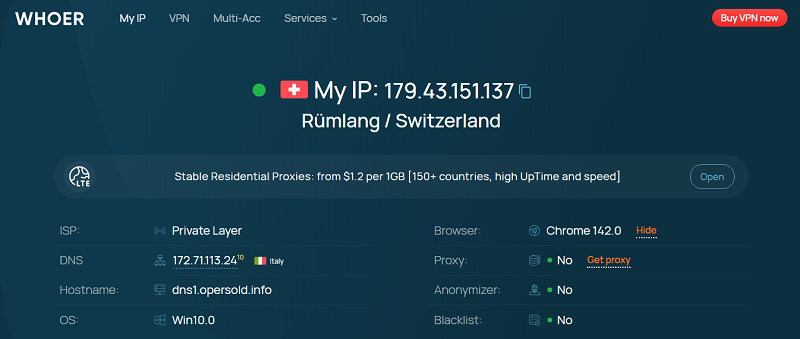
Right at the top of Whoer.net I see the main thing I came for: a big line that says “My IP” and shows my current IP address. Next to it there’s a small country flag and a city / country pair – in my case, Rümlang / Switzerland. This is the core answer to the classic “what is my IP” question, but it already feels like more than a dry number. I instantly see not only the address, but also how the site detects my location by IP.
Under that, everything is laid out in two short columns. On the left I get the basic network details:
- ISP – the name of the company that gives me internet. Useful if I want to check whether I’m really going out through my home provider or, for example, through a VPN.
- DNS – the server that translates website names into IP addresses. If this line shows something strange or a country I don’t expect, it’s a hint that my traffic may be going through someone else’s resolver.
- Hostname – a more human-readable label for my connection. Sometimes it clearly shows that I’m using a VPN, hosting provider, or mobile network.
- OS – the operating system Whoer.net detects from my browser, like “Win10.0”. This is a reminder that sites rarely just see my IP; they also see what kind of device and system I’m on.
On the right side, there are a few quick checks that feel more like an “IP lookup plus safety check” than just raw data:
- Browser – the exact browser and version I’m using.
- Proxy – a simple Yes/No answer to whether my connection looks like it’s going through a proxy.
- Anonymizer – another Yes/No line that hints if my IP looks like it belongs to a VPN, hosting, or some other anonymizing service.
- Blacklist – shows whether my IP appears in popular blocklists. If it says “No”, that’s reassuring; if it ever says “Yes”, I know why some sites might be blocking me.
What I also notice on this first screen is how clean the page looks. There’s a small promo block under the IP line, but that’s pretty much it. For a free tool that gives so much connection info in one place, the amount of advertising is surprisingly low. The result is a first screen that works like a calm, focused dashboard: I open Whoer.net, and within a few seconds I know my IP, my visible location, and whether my connection looks normal or “interesting” from the outside.
What hits me here is how much my browser is already telling the site without me doing anything. I don’t type in my name, I don’t fill any form – but Whoer.net still knows my IP, my country, my ISP, my browser, my OS, and much more in the background. Any website I visit can quietly collect this kind of data: which browser and version I use, my system, language, time zone, maybe even screen size and some settings. Piece by piece, it builds a pretty detailed picture of who is on the other side of the screen.
Whoer.net is basically showing me this “invisible conversation” between my browser and the site in a very open way. And this is only the beginning. Later on the page there’s a separate block about browser fingerprinting – a more advanced way to recognize a user without cookies, just by combining all these small details. I’ll get back to that part later in the review; for now I just keep in mind that this simple “what is my IP” check reveals only the first layer of what my browser gives away.
“What is my ip leaks” in one bar: the disguise score
Right under the basic IP info, Whoer.net gives me a long green bar with a line like:
“Your disguise: 70% – Moderate security and anonymity remarks.”
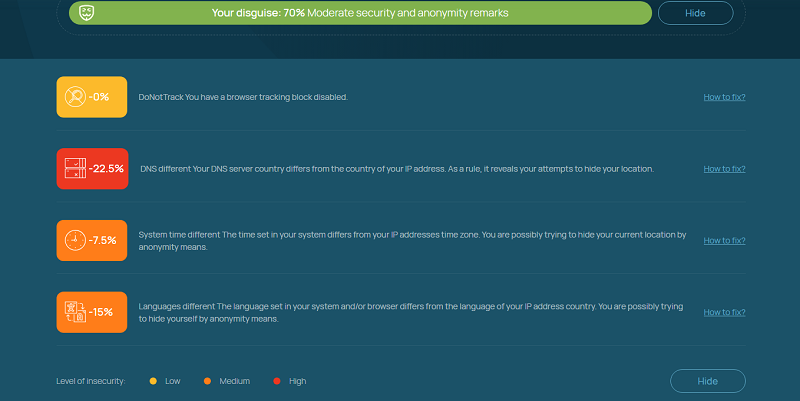
This is where Whoer goes beyond a simple “what is my IP” answer and starts talking about what is my ip leaks in practice. The site takes different pieces of data from my connection and browser and turns them into one simple score: how natural and consistent my online “mask” looks.
When I click More, the bar unfolds into a list of concrete factors. Each one has a little colored block with a minus percentage:
- DNS different – my DNS server is in another country than my IP. That can reveal that I’m using a VPN or some sort of tunneling.
- System time different – my system clock doesn’t match the time zone of my IP. Again, a hint that I might be somewhere else physically.
- Languages different – my browser or system language doesn’t fit the country of my IP address.
Every mismatch subtracts a bit from 100%. The more red and orange blocks I see, the more ip leaks I effectively have – not in the sense of a hack, but in the sense that my setup clearly looks unusual and easier to flag or track.
At the bottom there’s a tiny legend with Low / Medium / High levels of insecurity, so I don’t have to guess what the colors mean. I like this block because it’s not just a warning; it’s a to-do list. It shows exactly which settings make my anonymity weaker and gives me a starting point if I want to tune my VPN or browser to look less noisy online.
IP Address Details: a closer look at the IP itself
When I scroll a bit down, Whoer.net switches from the quick “what is my IP” view to a more static IP Address Details tab. It looks like a clean dashboard: tools on the left, and a full card with my IP data on the right.
In the Location block I see where this IP is registered on paper: country, region, city, ZIP, hostname and even the IP range, ISP, and AS number / organization. There’s also a small Whois button that opens the classic registry record for this address. This is handy if I want to double-check where my VPN endpoint really lives, or understand who “owns” the IP that websites see when they do an ip lookup on me.
On the left, Whoer already hints that this is just the beginning: there are buttons for DNS leak test, port scanner, and an evercookie test. In the more detailed checker (the Extended version tab) these pieces come together into a full technical profile of my connection: how my DNS behaves, whether any services on my device are exposed, and how persistent some tracking methods can be. In short, this part of Whoer.net is for the moment when you don’t just need your IP number, but want to understand how that IP and its settings will look to any site or service you connect to.
Browser fingerprint: who I look like online even after I change my IP
When I switch to the Browser fingerprint tab, the focus moves away from my IP and straight to my browser itself. Here Whoer.net shows what kind of unique “device card” I’m presenting to every site: browser version, operating system, languages, time zone, screen settings and a bunch of other technical details bundled into one fingerprint. Whoer
This is the part that explains why changing only the IP isn’t always enough. Even if I hide behind a VPN or proxy, the same rare combination of settings can still follow me around the web. The fingerprint tab lets me see that combination the way a tracking script would see it and check if anything looks obviously inconsistent or too unique. In short, this section is less about “what is my IP” and more about who I look like as a device, which is crucial if I care about staying low-profile and not leaving an easily recognisable trail online.
Conclusion
When I first typed in Whoer.net, I came for something very simple: what is my IP, how to find IP address quickly, and maybe run a basic IP lookup. The homepage absolutely covers that, but as I scrolled, it turned into something else: a small control panel for how I look online.
The site doesn’t drown me in jargon. It shows my IP, location, provider and basic connection status in one clean block, then adds that “disguise” score so I can see where my setup quietly leaks information. A bit lower, the IP Address Details tab gives me the “passport” of my IP and a set of tools to dig deeper when I actually need to. And the fingerprint section reminds me that the story doesn’t end with the IP at all – my browser itself is a huge source of identity.
For me, the value of Whoer.net is that it turns all of this into a quick, visual check instead of a pile of separate utilities. If I just need my address, I get it in one click. If I want to understand why some site sees me as suspicious, or how my VPN really looks from the outside, the same page has enough detail to start investigating.
So I’d describe Whoer.net as more than a “what is my IP” page, but not yet a heavy professional toolkit. It sits in that sweet spot: simple enough to use when I’m in a hurry, and honest enough to show how much my connection and browser are actually telling the world about me.