

Audio fingerprint: why noise shows and how to fix it
You have fingerprint protection turned on. The sound on your computer is off, the microphone is blocked. You open Whoer, and there's a red row in the Browser card: Audio with a long number. What was there to hear?
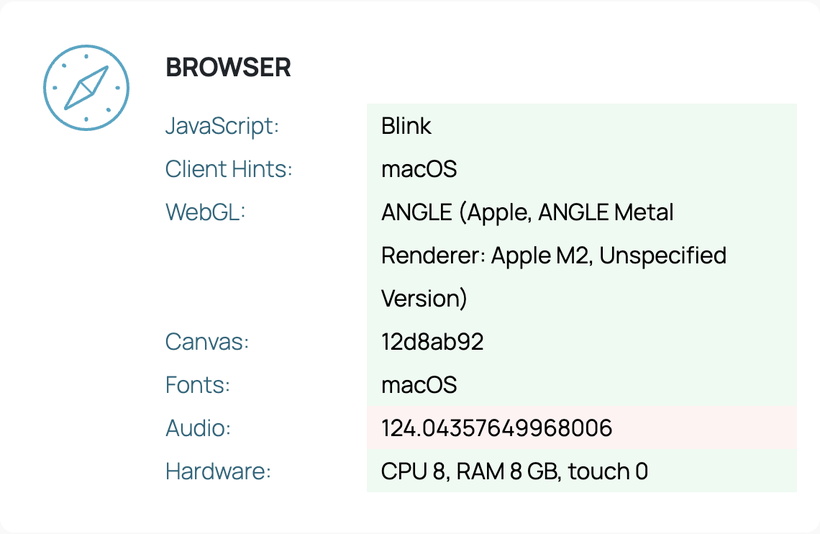
Nothing. Nobody listened and nobody recorded anything. An audio fingerprint is arithmetic, not sound. Let's see where the number comes from and how it gives the protection away.
What an audio fingerprint is
A browser can process sound: mix it, compress it, change the volume. A website can ask it to calculate a short signal right in memory. The speakers stay silent, no microphone is needed and nobody asks for permission.
The result of the calculation is a long number. Between browsers and processors it differs in the last digits. On one device it is always the same. Whoer shows that number in the Audio row.
How Whoer notices noise
Fingerprint protection mixes random noise into the calculation so that the number is new each time. That's easy to check.
Whoer calculates the same signal twice. A real browser gives one number both times, down to the last digit. If the numbers differ, noise was mixed into the fingerprint.
The row shows one of three things:
- A number on green. Both calculations match.
- A number on red. The calculations differ.
- N/A. The browser didn't calculate the signal. It happens, for example, in a tab that is open in the background on an iPhone.
Noise takes up to 10% off your anonymity score. If the Canvas row is red as well, Whoer treats them as one signal and deducts once.
Why noise stands out more than a fingerprint
With a real number you are one of many people with the same browser and processor. With noise you are a person whose one calculation gives two different answers. A healthy browser doesn't do that. The website won't recognise the device, but it sees the protection.
Where noise comes from
A privacy extension
Fingerprint blockers often mix noise into both Canvas and audio at once.
A browser with profiles in noise mode
Profile settings sometimes offer a choice for audio: real or noise. Noise gives a red row.
A protection mode in the browser itself
Some browsers in a strict protection mode change the result of the calculation as well.
How to fix it
Turn the noise off
Disable the extension or add the site to its exceptions.
In a browser with profiles, pick real audio
A real number matches thousands of others and raises no questions.
What does not help
- Muting the sound or blocking the microphone. The calculation runs in memory, and speakers and the microphone take no part in it.
- A proxy or a VPN. The browser calculates the number, not the network.
- Private mode. The number is the same there, and an extension with noise may work in it too.
- Changing the User-Agent. It has no effect on the calculation.
How to check the result
Open Whoer again and look at the Browser card. If it worked, the Audio row is green. Reload the page a couple of times: the number should stay the same.
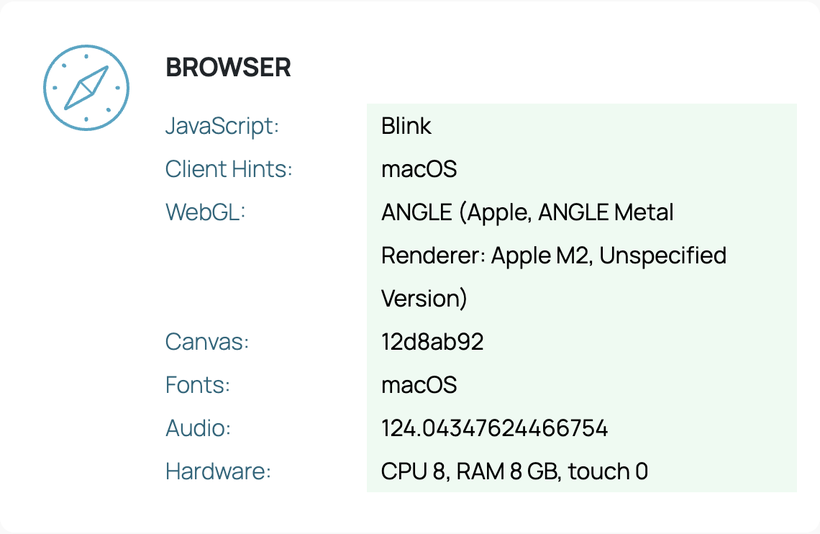
The row above is Canvas. It works the same way, only with a picture, and there's a separate article about it.
Summary
Noise hides the number and gives the protection itself away.
- An audio fingerprint is the result of a short calculation. No sound is played or recorded.
- A real browser calculates one signal the same way any number of times.
- Whoer calculates twice and sees the noise at once.
- Real audio fixes it: no extension with noise and no noise mode in the profile.