

Fonts from another system: why a website sees another OS and how to fix it
You built a Windows profile with care. The system name, an NVIDIA graphics card, everything in place. You open Whoer, and there's a red row in the Browser card: Fonts: macOS. You didn't think about fonts, and the website did.
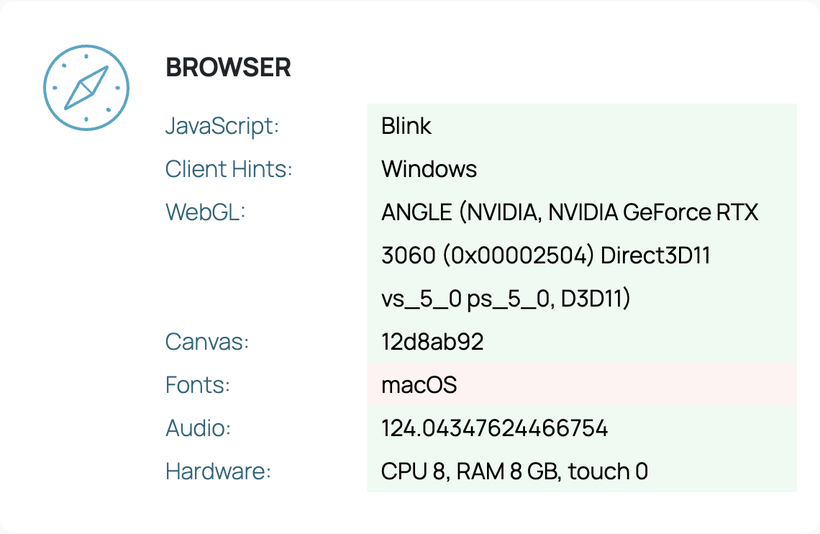
Every system has its own set of fonts, and it's much harder to change than a name. Let's see how a website learns which fonts you have.
How a website learns your fonts
A browser doesn't show websites a list of fonts. But the list can be measured.
A page writes the same line twice: in a fallback font and in the font it wants to check. Then it compares the width. If the font isn't on the computer, the browser uses the fallback and the width is the same. If the width differs, the font is installed.
That's how Whoer checks the fonts a system is recognised by.
| System | Its fonts |
|---|---|
| Windows | Segoe UI, Consolas |
| macOS | Helvetica Neue, Menlo, Monaco, SF Pro |
| Linux | Liberation, DejaVu, Ubuntu, Noto Sans |
The Fonts row shows the name of the system whose fonts were found. If fonts of two systems were found, the names are joined with a plus.
What Whoer compares
Whoer takes the system the browser names in the User-Agent and looks at the fonts it found.
- The system's own fonts were found. The row is green, even if there are foreign ones next to them: those often come with programs.
- Its own fonts are missing and another system's fonts are there. The row turns red.
- Neither kind was found. No verdict.
Only Windows, macOS and Linux are compared. On phones the row stays without a verdict.
A mismatch takes up to 20% off your anonymity score. If neighbouring checks of the same kind fired too, such as WebGL or JavaScript, Whoer treats them all as one signal and deducts once.
Where foreign fonts come from
A spoofed system in the User-Agent
An extension or a setting tells websites Windows, and your computer is a Mac. The fonts are still the Mac's.
A profile from another system
A browser with profiles changed the system name and the graphics card, and it shows the fonts that are on the computer. This is the most common place where a profile and the hardware part ways.
How to fix it
There is one rule: the named system's fonts have to be found.
Name your real system
Turn off the extension or the setting that changes the User-Agent. For the details see how to change the User-Agent in a browser.
Work from the system you name
Need Windows? Take a computer or a remote machine with Windows. Its fonts are native from the start.
In a browser with profiles, turn on the fonts of the profile's system
Some of these browsers carry their own set of fonts for each system. Check that it's on and matches the system of the profile.
What does not help
- A proxy or a VPN. Fonts live on the computer, not in the network.
- Private mode and clearing cookies. The fonts stay the same.
- Deleting a couple of your own fonts. The named system's fonts won't appear because of that.
How to check the result
Open Whoer again and look at the Browser card. If it worked, the Fonts row is green and names the same system as the browser.
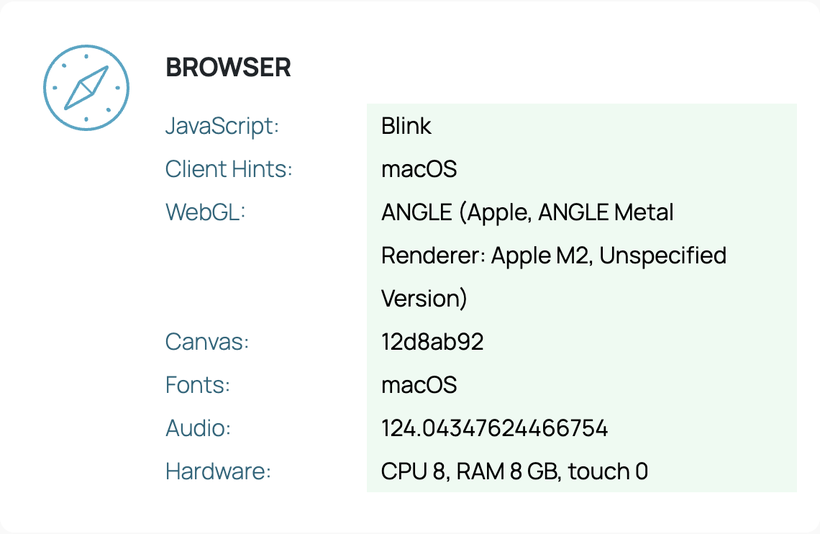
The graphics card gives the system away too. There's a separate article about the WebGL row.
Summary
A system name changes with one line, and fonts have to be carried along.
- A website learns fonts from the width of a line: it needs no list.
- Windows, macOS and Linux each have fonts the others don't.
- Whoer compares the fonts it found with the system in the User-Agent.
- Matching fixes it: the real system or the font set of the system you name.